PROGRAM SECTION
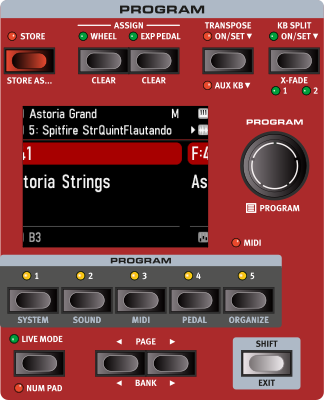
The centrally located Program section provides access to performance functions such as loading and storing programs, access to Live programs, keyboard split functionality and more. This is also where menus containing System, Sound, MIDI and Pedal settings are found as well as the Organize mode, used for rearranging Programs. The menus and their settings are covered in the Menus chapter.
TRANSPOSE ON/SET
The Nord Electro 7 can be transposed in +6/-6 semitone steps on a per-program basis. To set the transpose value, press and hold down ON/SET and then use the dial to choose a setting. Pressing ON/SET turns the function On or Off. Transpose settings are saved and recalled as part of a program.
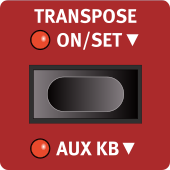
To set up a transpose that affects all programs, use the Global Transpose parameter in the System Menu.
KB SPLIT
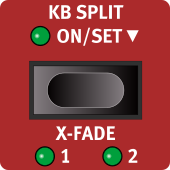
The Nord Electro 7 keyboard can be split into two zones, where each section (Organ, Piano, Synth) can be assigned to either or both of these zones, allowing for many different combinations of layered and split sounds.
KEYBOARD SPLIT SETTINGS
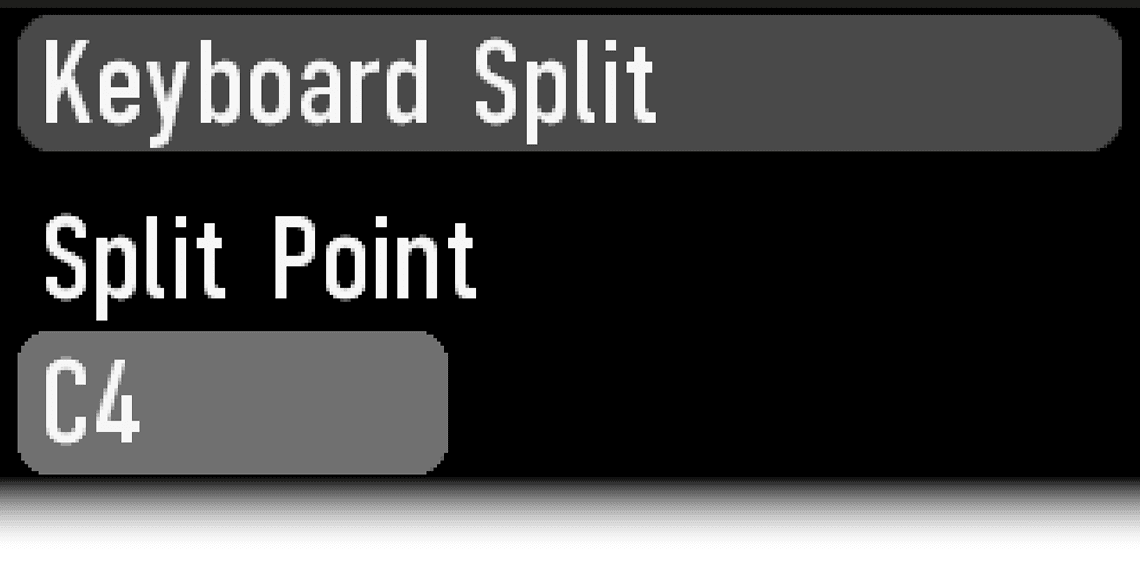
Press the ON/SET button to activate a split and hold it down, as indicated by the arrow symbol, to open up the Keyboard Split page in the display.
CHOOSING A SPLIT POSITION
Use the dial to choose one of the 9 keyboard split positions, F2-F6. LEDs are provided above the keyboard, indicating which split position is active.
Normally the transition between two keyboard zones is immediate, with no overlap between the sounds selected for each zone. By activating X-Fade (cross-fade), sounds can instead be mixed or “cross-faded” across the split point, creating a smoother transition between sounds.
There are three different settings, selectable by pressing X-FADE (Shift+Split On/Set):
Off: When X-Fade is off there is no cross-fade between sounds.
The 1 setting represents a cross-fade range of ± 6 semitones. The sound below the split point fades out across 6 notes above it and sounds above the split point will similarily reach 6 notes below it.
The 2 setting provides a range of ±12 semitones, 12 below the split point and 12 above it.
Store
The STORE button is used for storing an edited program to a location in the program banks. Storing a program overwrites existing data at the selected memory location.
When the Nord Electro 7 is shipped from the factory its memory is protected. To be able to store Programs the Memory Protect parameter needs to be set to “Off” in the System menu.
STORING A PROGRAM
Here is how to store a program without changing its name:
Press the STORE button once. The Store LED will start blinking, and the display will show the name of the program and its location.
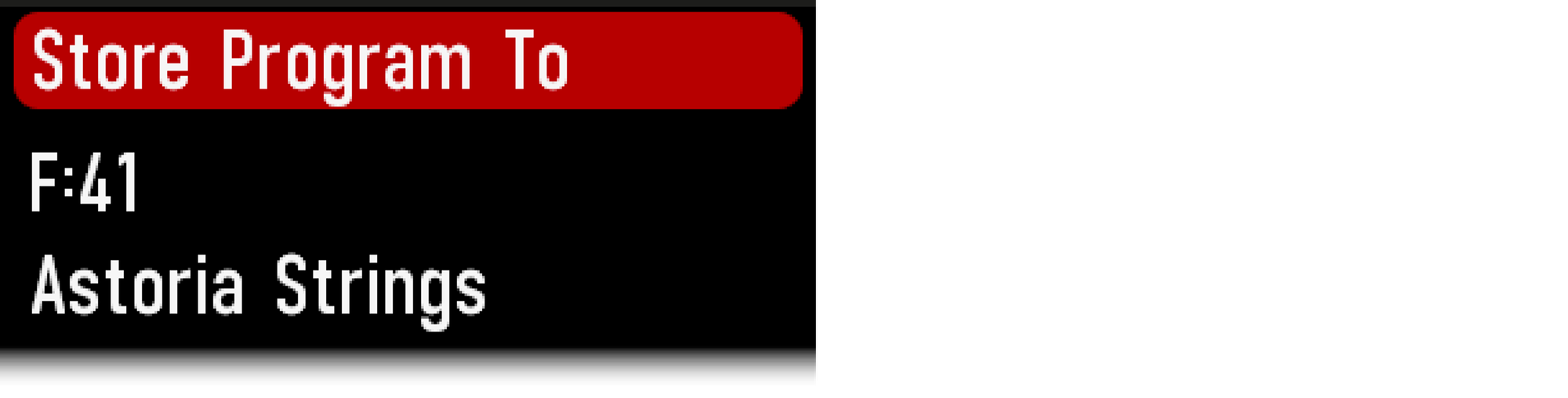
To select a different store location use the dial and/or the PROGRAM 1-5 buttons. A program can also be stored to one of the Live program locations by pressing the LIVE MODE button and then selecting the desired Live program. The program at the selected destination can always be auditioned by playing the keyboard.
When a suitable location has been selected, press STORE again to confirm the operation
To cancel an ongoing Store operation, press EXIT.
NAMING A PROGRAM (STORE AS...)
Here is how to store a program without changing its name:
To store and name your program press STORE AS... (Shift + Store).
Press and hold the ABC/abc soft button to bring up a row of alphanumeric characters. Turn the dial to select the character for the current position. The PROGRAM dial can be pressed for quickly switching between upper and lower case.
Release the ABC/abc button to advance to the next character. The dial can be used to move the cursor freely. The Insert soft button is used for inserting a blank space at the cursor position and the Delete soft button is used for deleting the selected character.
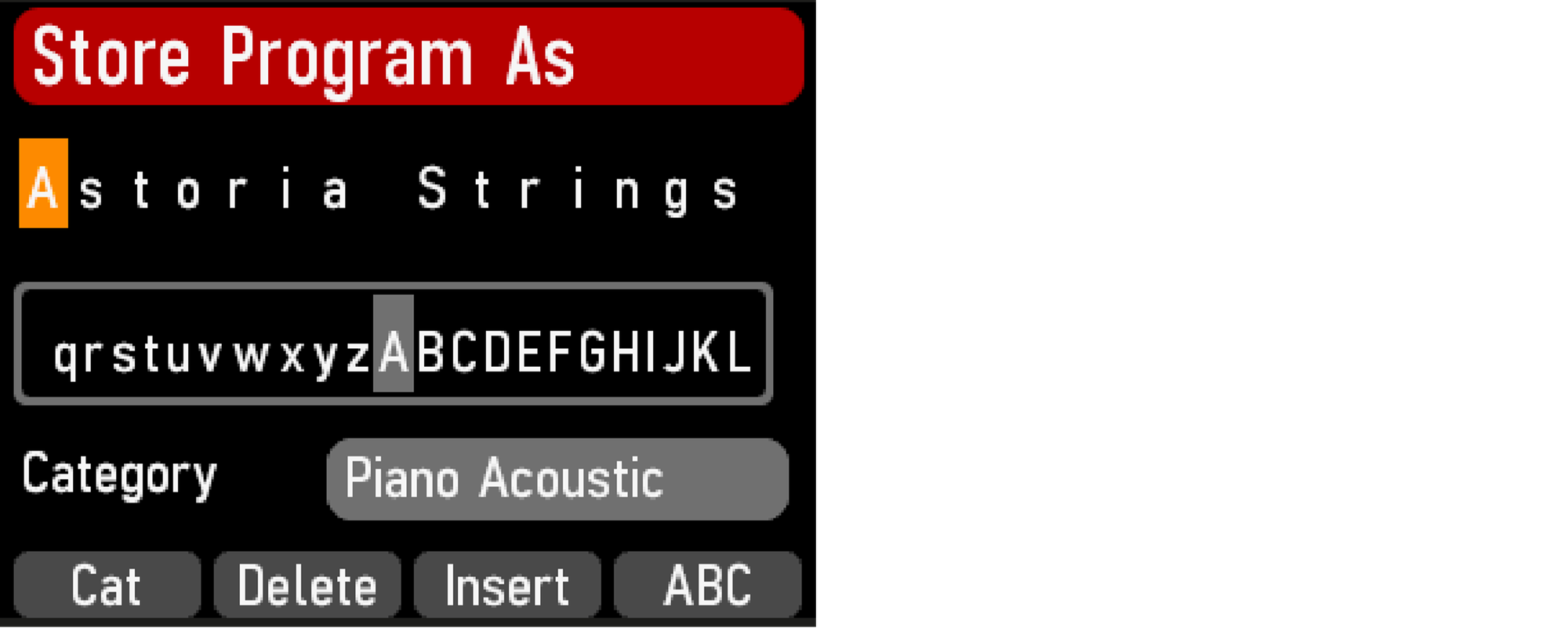
To assign a category to your program, hold down the Cat soft button and select a category using the dial.
Press STORE to bring up the Store Program To screen. Use and/or the Program buttons to select a location. Note that the sound at the selected location can be auditioned by playing the keyboard.
When a suitable location has been selected, press STORE again.
SHIFT/EXIT BUTTON
Many controls have a secondary function which is accessed by holding SHIFT and pressing the button or turning the dial. Shift functions are always printed below the corresponding control. For example, holding Shift and pressing the Program 3 button will open up the Sound Menu. The Shift button is also used to EXIT menus, or for cancelling Store operations.
EXPRESSION PEDAL ASSIGN
Organ swell, Piano and Synth Level, Synth Filter cutoff frequency as well as a range of parameters in the Effects section can be controlled by an attached expression pedal.
Parameters that can be set as a target for the Expression Pedal are equipped with a green LED, next to the parameter knob. The Mod 1 effect RATE/WAH is one such example.
Here is how to set up and remove an assignment:
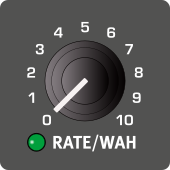
Set the target parameter to the desired value at the maximum level of the Expression Pedal.
Press and hold the EXP PEDAL ASSIGN button.
Turn the knob corresponding to the desired target parameter clockwise.
The pedal will now control the parameter, from zero at the bottom position of the pedal to the value defined by the knob at the maximum position.
To remove the assignment, press and hold the EXP PEDAL ASSIGN button and turn the parameter knob anti-clockwise.
To remove all Expression Pedal assignments from a program. Press CLEAR (Shift+Exp Pedal Assign).
The following parameters are available as Expression Pedal assignments:
| Organ | Piano | Synth | Effects |
|---|---|---|---|
| Swell | Level | Level | Mod 1 Rate/Wah |
| - | - | Filter Freq | Mod 1 Amt |
| - | - | - | Mod 2 Rate |
| - | - | - | Mod 2 Amt |
| - | - | - | Delay Tempo |
| - | - | - | Delay Feedback |
| - | - | - | Delay Dry/Wet |
| - | - | - | Drive Amount |
| - | - | - | Reverb Dry/Wet |
LIVE MODE
The Nord Electro 7 has five easy-to-access Live programs. These programs are special in that edits to them are automatically stored. When exiting a Live Program or powering off the machine all edits are saved, without the need for a manual Store operation. To select a Live Program, press LIVE MODE and then any of the 1-5 buttons in the Program area.
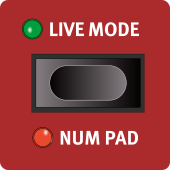
A Live program can be stored to a location in the program banks using the standard Store methods (see above). Conversely, a regular program can also be stored into a Live program location.
NUM PAD (NUMERIC PAD)
There are two distinct options for how programs and banks are navigated: The default “page based” mode and the Numeric Pad mode, activated by pressing NUM PAD (Shift+Live Mode).
In Numeric Pad mode the Program 1-5 buttons are used for entering any program number (11-55) within the current bank, rather than directly switching between the 5 programs on a page.
As an example, to select program 12 within the current bank, first press Program button 1 (to select page 1) and then Program button 2 (to select program 2 within that page). Here are some additional points:
- The PAGE/BANK buttons and the Program dial work the same regardless of mode.
- LIVE MODE programs are always directly selected using the 1-5 Program buttons.
PROGRAM
The PROGRAM push encoder to the right of the display is used for selecting programs, as well as for other tasks such as setting parameter values and for entering characters in program names. Pressing the dial activates the list function, which displays all programs in a list.

PROGRAM LIST, ABC AND CAT
The LIST (press Program dial) view provides a good overview when browsing programs linearly (Num selected in the display) but also presents two additional sort modes: Abc (Program 2) and Cat (Program 3).
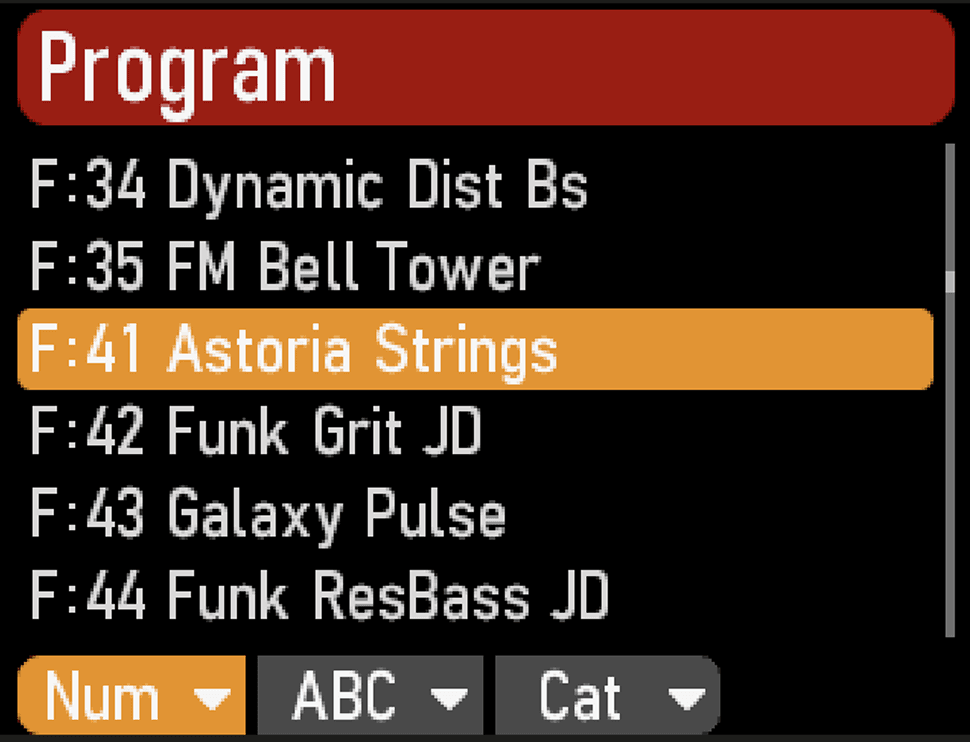
The chosen sort mode is remembered when List view is entered again.
PAGE/CAT AND BANK
The PAGE ◀︎ / ▶︎ buttons are used to navigate program pages – a page being a group of 6 programs. A Program BANK (Shift+Page) on the Nord Electro 7 contains 36 program locations divided into 6 program pages.
When in Program List view (see above) the Page buttons can be used for switching between Pages, alphanumeric characters or categories depending on which sort mode has been selected.
AUX KB
The AUX KB (Auxilliary Keyboard) feature allows for playing and controlling individual sections on the Nord Electro 7 from an external keyboard connected to the MIDI input. This can be handy in live situations where a secondary keyboard can be used as a controller for parts of the Nord Electro 7, on a per-program basis.
The Electro 7 keyboard is not connected to, and has no effect on the section being assigned to the Aux KB function.
SETTING UP AUX KB
Here is how to use the Aux KB functionality within a Program:
Open the AUX KB menu by pressing down Shift+Transpose and select an option for what to destination to control from the external unit:
- Organ – The entire Organ is played from the external keyboard.
- Dual Organ: Lower – The external keyboard controls the Lower Electro 7 manual, corresponding to PRESET 2. The Electro 7 keyboard plays the Upper manual, corresponding to PRESET 1 and DRWB LIVE.
- Dual Organ: Upper – The opposite of above, i.e. the external keyboard plays the Upper manual and the Electro 7 keyboard the Lower.
- Piano – The Piano section is played from the external keyboard.
- Synth – The Synth section is played from the external keyboard.
Make sure that the AUX KB function is turned on, by a single press on Shift+Transpose.
When a section is in Aux KB mode its KB Zone LEDs are lit with a red color.
The MIDI Channel for the Aux KB feature is set in the MIDI Menu on the Nord Electro 7. Read more on this on page 43.
ABOUT PEDALS AND OTHER DEVICES IN AUX KB MODE
The Nord Electro 7 sustain pedal and Organ section swell/expression pedal will affect the selected sound engine according to how the respective panel controls are set. If SUSTPED is turned off on the panel, and if [EXP PED] has been turned off for the Organ section, these are only controlled by incoming MIDI on the Aux KB channel.
ORGANIZE MODE
The ORGANIZE (Shift+Program 5) mode allows for moving or "swapping" programs within the program banks.
ENTER THE ORGANIZE VIEW
Press ORGANIZE (Shift + Program 6)SWAP TWO PROGRAMS
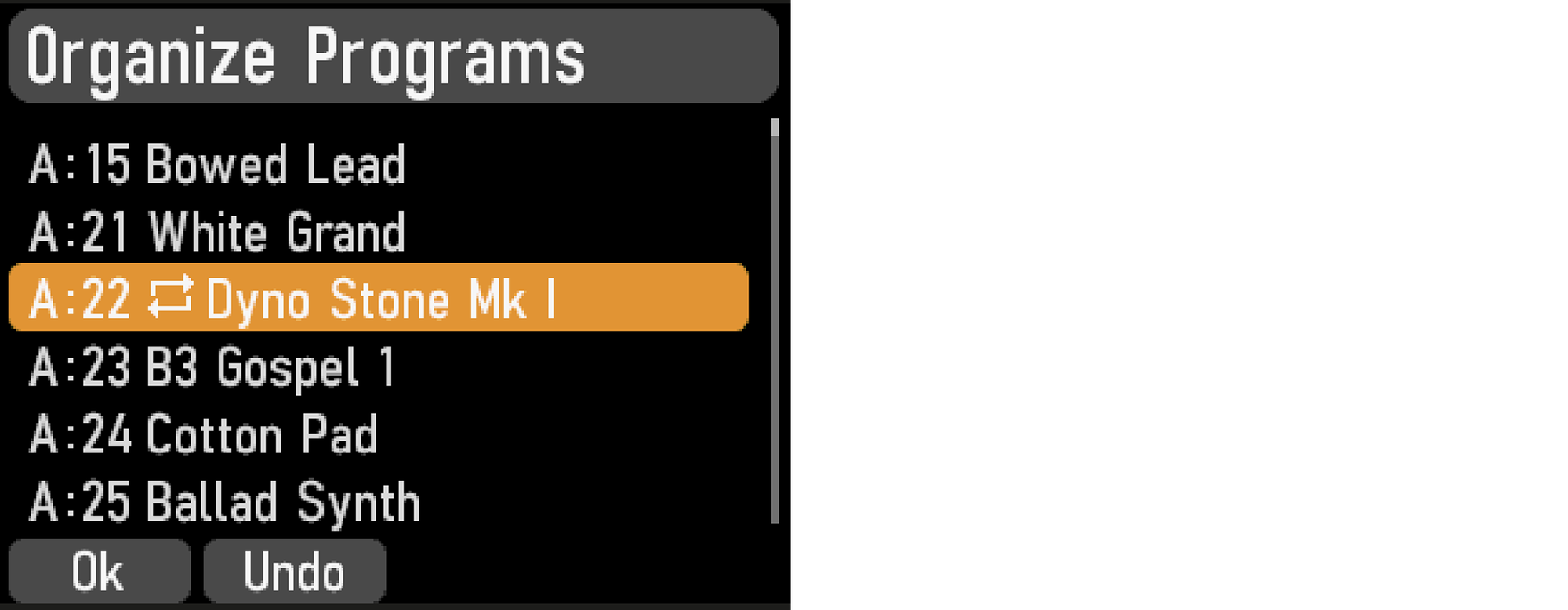
A Swap operation interchanges the positions of two programs.
Use the dial to select the program location which should be swapped with another and press Swap.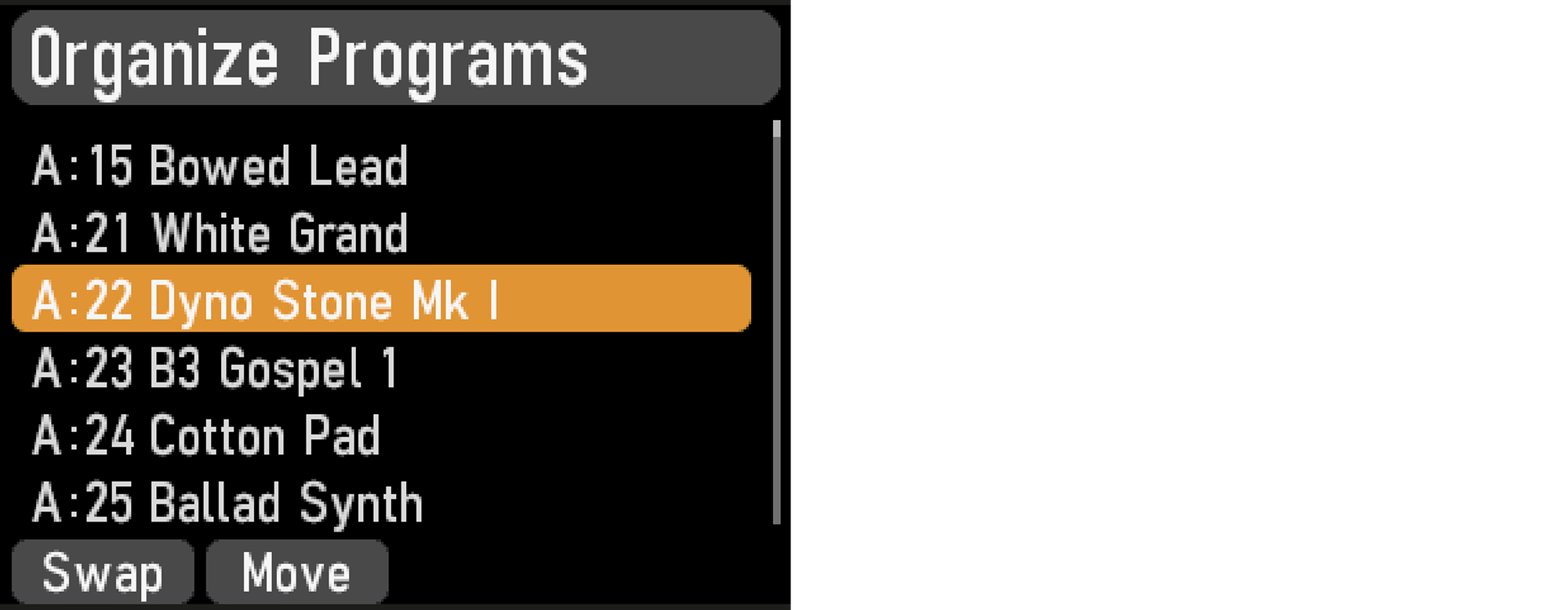
Use the dial to select the destination and press Ok to complete the Swap operation. Pressing Undo will instead cancel the operation.
MOVE A PROGRAM
Use the dial to select a program which should be moved to another location and press MoveSelect the destination location for the operation, using the dial, and press Ok. Pressing Undo will instead cancel the operation.
Note that programs between the source and destination locations are shifted one step up or down, changing which programs are part of each page within the affected range.
MIDI LED INDICATOR
The MIDI LED, located below the Program dial, blinks as incoming MIDI messages are received by the MIDI In port, or over the USB connection.